
Email alert: WordPress Droplet at Disk Utilization 95%+
How I found the cause of high disk usage, cleared the stale data, prevented it from happening again, and reclaimed 11GB without downtime.
I recently received a monitoring alert from a Digital Ocean WordPress droplet:
“Disk Utilization Percent is currently at 95.19%, above setting of 95.00% for the last 1h”
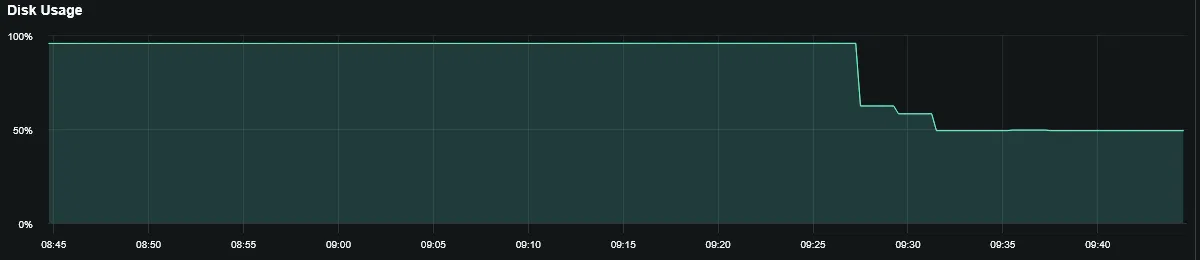
But I reduced this to 59% disk space in roughly 15 minutes with zero downtime. This is important because if the disk space fills up, the site will go down.
1. Confirm the issue and figure out what’s filling up this disk space
So first, let’s confirm that the server tells the same story as the monitoring alert. Let’s use df to see how much disk space is available. The -h flag stands for “human-readable.”
df -hFilesystem Size Used Avail Use% Mounted on
tmpfs 96M 1.1M 95M 2% /run
/dev/vda1 25G 23G 1.1G 96% /
tmpfs 479M 0 479M 0% /dev/shm
tmpfs 5.0M 0 5.0M 0% /run/lock
/dev/vda15 105M 6.1M 99M 6% /boot/efi
tmpfs 96M 4.0K 96M 1% /run/user/1000Yep, the root partition, /dev/vda1, was basically full. The site was still up, but it could easily jump to 100% and shut down the site.
The first question was: what is actually consuming the disk?
I checked the usual suspects on a WordPress VPS: logs, databases, uploads, and backups.
sudo du -sh /var/lib/mysql11G /var/lib/mysqlThat was the first big clue. MySQL alone was using nearly half of the 25G disk.
I also checked the MySQL logs next:
sudo du -sh /var/log/mysql176K /var/log/mysqlMySQL error logs were not the problem. The real issue was inside the data directory.
2. Search for the biggest offenders
Instead of guessing directory by directory, I searched for any file over 100MB anywhere on the filesystem:
sudo find / -xdev -type f -size +100M -exec ls -lh {} \; 2>/dev/null-rw-r----- 1 mysql mysql 1.1G Aug 12 15:30 /var/lib/mysql/binlog.000210
-rw-r----- 1 mysql mysql 988M Sep 7 16:19 /var/lib/mysql/binlog.000217
-rw-r----- 1 mysql mysql 1.1G Aug 21 10:59 /var/lib/mysql/binlog.000212
-rw-r----- 1 mysql mysql 1.1G Aug 27 15:22 /var/lib/mysql/binlog.000214
-rw-r----- 1 mysql mysql 1.1G Sep 2 15:40 /var/lib/mysql/binlog.000216
-rw-r----- 1 mysql mysql 1.1G Aug 15 22:46 /var/lib/mysql/binlog.000211
-rw-r----- 1 mysql mysql 1.1G Aug 30 15:35 /var/lib/mysql/binlog.000215
-rw-r----- 1 mysql mysql 1.1G Aug 9 15:16 /var/lib/mysql/binlog.000209
-rw-r----- 1 mysql mysql 1.1G Aug 6 15:05 /var/lib/mysql/binlog.000208
-rw-r----- 1 mysql mysql 1.1G Aug 24 15:08 /var/lib/mysql/binlog.000213
-rw-r--r-- 1 www-data www-data 127M /var/www/html/wp-content/uploads/iawp-geo-db.mmdb
-rw-r--r-- 1 www-data www-data 346M /var/www/html/wp-content/ai1wm-backups/...wpress
-rw-r--r-- 1 www-data www-data 584M /var/www/html/wp-content/ai1wm-backups/...wpressThis identified the primary cause: nine MySQL binary log files, each around 1.1GB, were piling up. That alone accounted for roughly 9.6GB.
WordPress Uploads
While I was in there, I also checked the WordPress uploads directory directly, just to rule it out:
du -sh /var/www/*/wp-content/uploads183M /var/www/html/wp-content/uploadsNot a factor, 183MB is nothing.
Backup Plugins
Automated backup plugins can be a source of bloat. However this site only had manual backups. Still here’s the code you would use to lookup backup plugins:
find / -iname "*backup*" -mtime +30 -exec du -sh {} \; 2>/dev/nullThat turned up two separate backup plugins both leaving local copies behind. Updraft is used to save and revert everyday changes. All-in-One WP Migration is used to make full copies of the site and save them elsewhere as backups. (Updraft technically has this functionality too, but it costs extra. In this case, I use both backup plugins for different purposes.)
90M     /var/www/html/wp-content/updraft/backup_2026-03-26-2121_..._uploads.zip
22M     /var/www/html/wp-content/updraft/backup_2026-03-26-2121_..._db.gz
81M     /var/www/html/wp-content/updraft/backup_2026-03-26-2121_..._plugins.zip
16M     /var/www/html/wp-content/updraft/backup_2026-03-26-2121_..._themes.zip
5.7M    /var/www/html/wp-content/updraft/backup_2026-03-26-2121_..._others.zip
929M    /var/www/html/wp-content/ai1wm-backups
I could remove the old All-in-One WP Migration files, but at this point it’s unnecessary.
Journals and Old Kernel Packages
Two more quick checks while I had a full picture of disk usage in front of me:
sudo journalctl --disk-usageArchived and active journals take up 2.3G in the file system.dpkg -l | grep linux-imageThis showed 40+ old kernel packages still marked rc (removed, but config remnants left behind) from years of Ubuntu kernel updates, each one carrying ~50-80MB of leftover headers and module files.
rc  linux-image-5.15.0-105-generic    5.15.0-105.115                               amd64        Signed kernel image generic
rc  linux-image-5.15.0-106-generic    5.15.0-106.116                               amd64        Signed kernel image generic
rc  linux-image-5.15.0-107-generic    5.15.0-107.117                               amd64        Signed kernel image generic
rc  linux-image-5.15.0-112-generic    5.15.0-112.122                               amd64
.....
The culprits, ranked
| Item | Size | Issue |
|---|---|---|
| MySQL binlogs | ~9.6 GB | 9 files, ~1.1GB each, never expiring |
| journal logs | 2.3 GB | Never vacuumed |
| All-in-One WP Migration backups | 929 MB | .wpress backups (to save backups outside WP) |
| dmesg | 227 MB | Unusually large, worth a look |
| UpdraftPlus backups | ~215 MB | Local copies, used to quickly revert after plugin updates, etc. |
| old kernels | ~40+ rc entries | Each ~50-80MB of headers/modules |
There were also a few stale migration backups in the uploads directory, but they were not the main problem. The binlogs alone dwarfed everything else combined.
3. Root cause
The real issue was that MySQL was keeping binary logs for 30 days by default. For a simple WordPress site, that was far more history than we needed, so I added a config setting in /etc/mysql/mysql.conf.d/ to expire logs after 1 day instead of the default 30.
sudo nano /etc/mysql/mysql.conf.d/mysqld.cnf
[mysqld]
...
binlog_expire_logs_seconds=86400
4. Apply the fix
In MySQL, the setting does not clean up existing logs right away. It only removes old logs when either
- the service restarts
- or after a purge operation is manually triggered.
So I restarted MySQL so the retention policy could start applying:
sudo systemctl restart mysqlThe restart doesn’t give a confirmation upon success, so I verified the service restarted successfully with this check:
systemctl show mysql --property=ActiveEnterTimestampActiveEnterTimestamp=Mon 2026-09-07 16:27:15 UTCAfter the restart, the existing 1-day expiry policy started cleaning out older logs. I also ran a manual purge just to be absolutely sure everything was cleared out:
sudo mysql --no-defaults -e "PURGE BINARY LOGS BEFORE NOW() - INTERVAL 3 DAY;"
5. Cleanup old systemd journal
Clean up old systemd journals. This logs every service restart, cron run, and SSH login attempt, as well as kernel messages, which adds up over time. There’s no automatic rotation or deletion unless we add SystemMaxUse to /etc/systemd/journald.conf.
sudo journalctl --vacuum-time=7dVacuuming done, freed 2.1G of archived journals from /var/log/journal/...6. Check for old kernel packages
Ubuntu leaves old kernel versions behind after every update. Each one holds onto headers and modules even after apt marks it “removed.” Worth checking on a server that’s been running for years:
dpkg -l | grep linux-imagerc linux-image-5.15.0-105-generic 5.15.0-105.115 amd64 Signed kernel image generic
rc linux-image-5.15.0-106-generic 5.15.0-106.116 amd64 Signed kernel image generic
rc linux-image-5.15.0-107-generic 5.15.0-107.117 amd64 Signed kernel image generic
...
ii linux-image-5.15.0-136-generic 5.15.0-136.147 amd64 Signed kernel image generic
...
ii linux-image-5.15.0-191-generic 5.15.0-191.201 amd64 Signed kernel image generic
ii linux-image-virtual 5.15.0.191.169 amd64 Virtual Linux kernel imageOver 40 kernel versions showed up with an rc status (removed, config remnants still present). Only two (ii, installed) are actually in use. Each rc entry leaves behind roughly 50-80MB of headers and module files, which adds up to a few hundred MB across the full list. This is easy to reclaim with:
sudo apt autoremove --purge7. Check the oversized dmesg log
dmesg (the kernel ring buffer log, also mirrored to /var/log/dmesg) was sitting at 227MB, unusually large, so I took a look at what was actually in it:
[UFW BLOCK] IN=eth0 OUT= MAC=... SRC=180.210.206.32 DST=137.184.13.36 ... DPT=23 ... SYN
[UFW BLOCK] IN=eth0 OUT= MAC=... SRC=165.154.151.176 DST=137.184.13.36 ... DPT=26872 ... SYN
[UFW BLOCK] IN=eth0 OUT= MAC=... SRC=193.34.212.136 DST=137.184.13.36 ... DPT=443 ... ACK
[UFW BLOCK] IN=eth0 OUT= MAC=... SRC=118.193.69.67 DST=137.184.13.36 ... DPT=26874 ... SYN
Every line was a [UFW BLOCK] entry. The firewall successfully rejecting routine internet background noise: bots and scanners probing random ports (old Telnet on 23, random high ports, legitimate-looking hits on 443/80). None of it got through. This is normal, constant traffic for any server with a public IP, and years of it had simply accumulated in the log.
The log itself wasn’t worth touching directly. It rotates on its own schedule and gets cleaned up along with the rest of /var/log. But since I was already looking at what UFW was blocking, I used the opportunity to review the actual rule set:
sudo ufw status numbered[ 1] 22/tcp LIMIT IN Anywhere
[ 2] Apache Full ALLOW IN Anywhere
[ 3] Nginx HTTP ALLOW IN Anywhere
[ 4] OpenSSH ALLOW IN Anywhere
[ 5] Anywhere DENY IN 103.153.183.166
[ 6] 22/tcp (v6) LIMIT IN Anywhere (v6)
[ 7] Apache Full (v6) ALLOW IN Anywhere (v6)
[ 8] Nginx HTTP (v6) ALLOW IN Anywhere (v6)
[ 9] OpenSSH (v6) ALLOW IN Anywhere (v6)Two problems stood out:
Duplicate SSH rules. Port 22 had both a LIMIT rule (rate-limits repeated connection attempts, good brute-force protection) and a plain ALLOW rule. Since both matched the same port, the unlimited ALLOW rule meant bots could bypass the rate limiting entirely. I removed the redundant ALLOW rules, keeping only LIMIT:
sudo ufw delete 9
sudo ufw delete 4
A dead service with an open port. I checked which web server was actually running:
sudo systemctl status apache2
sudo systemctl status nginx
Apache had been running fine for almost two months. Nginx had been failed for over two weeks, but its firewall rule was still open. I removed that too:
sudo ufw delete 7
sudo ufw delete 3
Final state: SSH properly rate-limited with no bypass, and no open port for a service that wasn’t even running:
sudo ufw status numbered[ 1] 22/tcp LIMIT IN Anywhere
[ 2] Apache Full ALLOW IN Anywhere
[ 4] Anywhere DENY IN 103.153.183.166
[ 5] 22/tcp (v6) LIMIT IN Anywhere (v6)
[ 6] Apache Full (v6) ALLOW IN Anywhere (v6)Not a disk-space fix, but a security hygiene win that came directly out of investigating why the log was so noisy.
8. Verify the cleanup happened
Now to confirm that the fix actually worked.
df -hFilesystem Size Used Avail Use% Mounted on
/dev/vda1 25G 14G 11G 59% /That meant a drop from 96% to 59% in roughly 15 minutes.
So we recovered about 11GB total, with the binary logs cleanup and journal vacuum.
9. Avoiding this happening again
The binlog retention policy fix from step 3 was one half of prevention. I confirmed it had actually taken hold:
sudo mysql --no-defaults -e "SHOW VARIABLES LIKE 'binlog_expire_logs_seconds';"+----------------------------+--------+
| Variable_name | Value |
+----------------------------+--------+
| binlog_expire_logs_seconds | 86400 |
+----------------------------+--------+Confirmed: the 1-day retention policy set back in step 3 was live and would continue to self-manage logs going forward, with no more manual restarts needed.
The other half was the journal logs from step 5, vacuuming freed the space, but without a cap they’d just refill over time the same way the binlogs had. I limited future growth by editing /etc/systemd/journald.conf:
SystemMaxUse=200MThen restarted the journal service so the new cap actually takes effect:
sudo systemctl restart systemd-journaldWith both settings live, binlogs now self-purge after 1 day and journal logs are capped at 200MB so neither should be able to silently balloon again the way they did this time.
10. Why this crept back after I thought I’d already fixed it
I was sure I’d already dealt with binlog expiry once before, and digging through old notes I wrote on Twitter from April 2025 confirmed it. https://x.com/ghiblimagicdev/status/1907698638349844961/photo/3
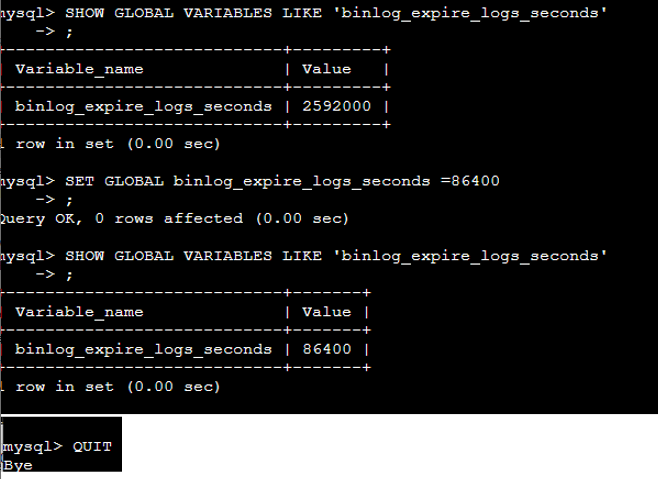
I had logged into the MySQL CLI directly and tightened the expiry from the default 30 days down to 1 day, since this is a simple, low-traffic WordPress site with no need for a long binlog history:
SHOW GLOBAL VARIABLES LIKE 'binlog_expire_logs_seconds';
-- 2592000 (30 days)

SET GLOBAL binlog_expire_logs_seconds = 86400;
-- Query OK, 0 rows affected

SHOW GLOBAL VARIABLES LIKE 'binlog_expire_logs_seconds';
-- 86400 (1 day)
That worked at the time. The problem is SET GLOBAL only changes MySQL’s live, in-memory value. It never writes anything to a config file. The setting looks permanent because it survives for as long as the server keeps running, but the moment MySQL restarts (a package upgrade, a reboot, a crash, anything) the in-memory value is gone, and MySQL falls back to whatever the config file says (or the compiled-in default of 30 days, if the file says nothing at all, which is exactly what was happening).
So somewhere between that old fix and this incident, MySQL had restarted at least once, silently reverting expiry back to 30 days with no warning. From that point on, binlogs went right back to accumulating almost unchecked.
This time, the fix goes into the actual config file (binlog_expire_logs_seconds=86400 in /etc/mysql/mysql.conf.d/mysqld.cnf), so it will survive every future restart automatically. There will be no more silent fallback to the default retention period.
Summary
The key lesson is this:
If you change a MySQL variable with SET GLOBAL, that change dies at the next restart unless it’s also written into a config file. Always do both, or just skip SET GLOBAL entirely for anything you want to actually stick.
- binary logs can silently consume huge amounts of disk space
- an expiry setting can exist and still do nothing until the service is restarted
- a server can appear healthy while the filesystem is quietly filling up
| Cause | Space reclaimed |
|---|---|
| Unexpired MySQL binary logs | ~9GB |
| systemd journal cleanup | ~2.1GB |
| Total recovered | ~11GB |
The site stayed up through the incident, and the root cause was resolved without downtime.